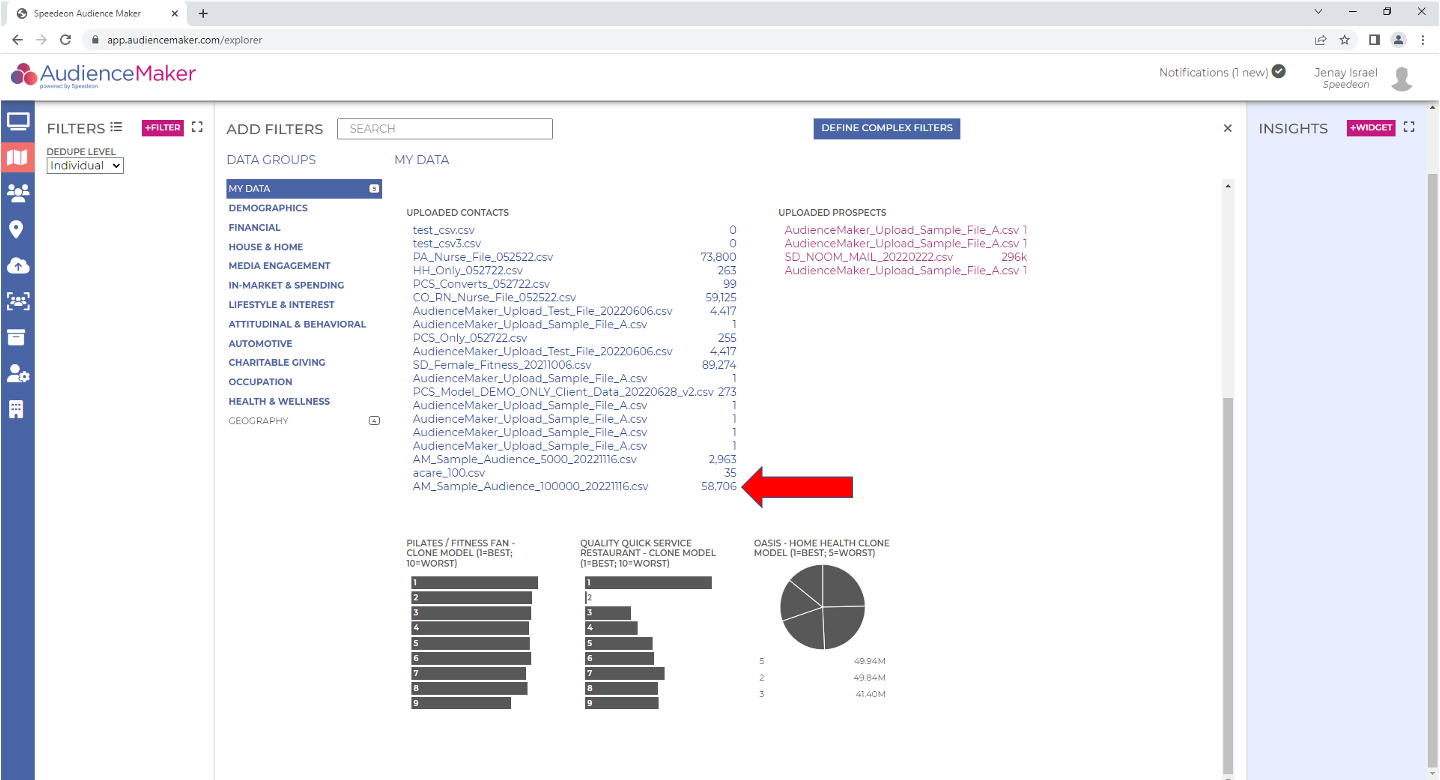
This tutorial walks through the process of uploading a data file containing personally identifiable information (PII) into AudienceMaker.
The AudienceMaker platform streamlines the process to ingest disparate and one-off files containing PII so they may be used to support audience development, ad-hoc analysis and modeling.
Step 1
Prior to upload, Users will need to verify that the file intended for upload meets the following criteria:
- The file is in a comma separated value (.csv) format
- The file contains less than 5,000,000 records
- The header record does not contain any special characters
- The file must contain all required data elements for upload including name, address, city, state, and zip code
To streamline the upload process, the following file layout with corresponding field names may be applied to assist the platform in analyzing and mapping pertinent fields:
| Field Name | Field Description | Field # | Field Type | Notes / Reference |
|---|---|---|---|---|
| ‘prefix’ | Prefix | 2 | Alpha | Optional |
| ‘fname’ | First Name | 3 | Alpha | |
| ‘mname’ | Middle Name | 4 | Alpha | Optional |
| ‘lname’ | Last Name | 5 | Alpha | |
| ‘suffix’ | Suffix | 6 | Alpha | Optional |
| ‘addr1’ | Address Line 1 | 7 | Alpha | |
| ‘addr2’ | Address Line 2 | 8 | Alpha | Optional |
| ‘city’ | City | 9 | Alpha | |
| ‘state’ | State | 10 | Alpha | |
| ‘zip’ | ZipCode | 11 | Alpha | Both 5-digit and 9-digit (zip+4) accepted |
Step 2
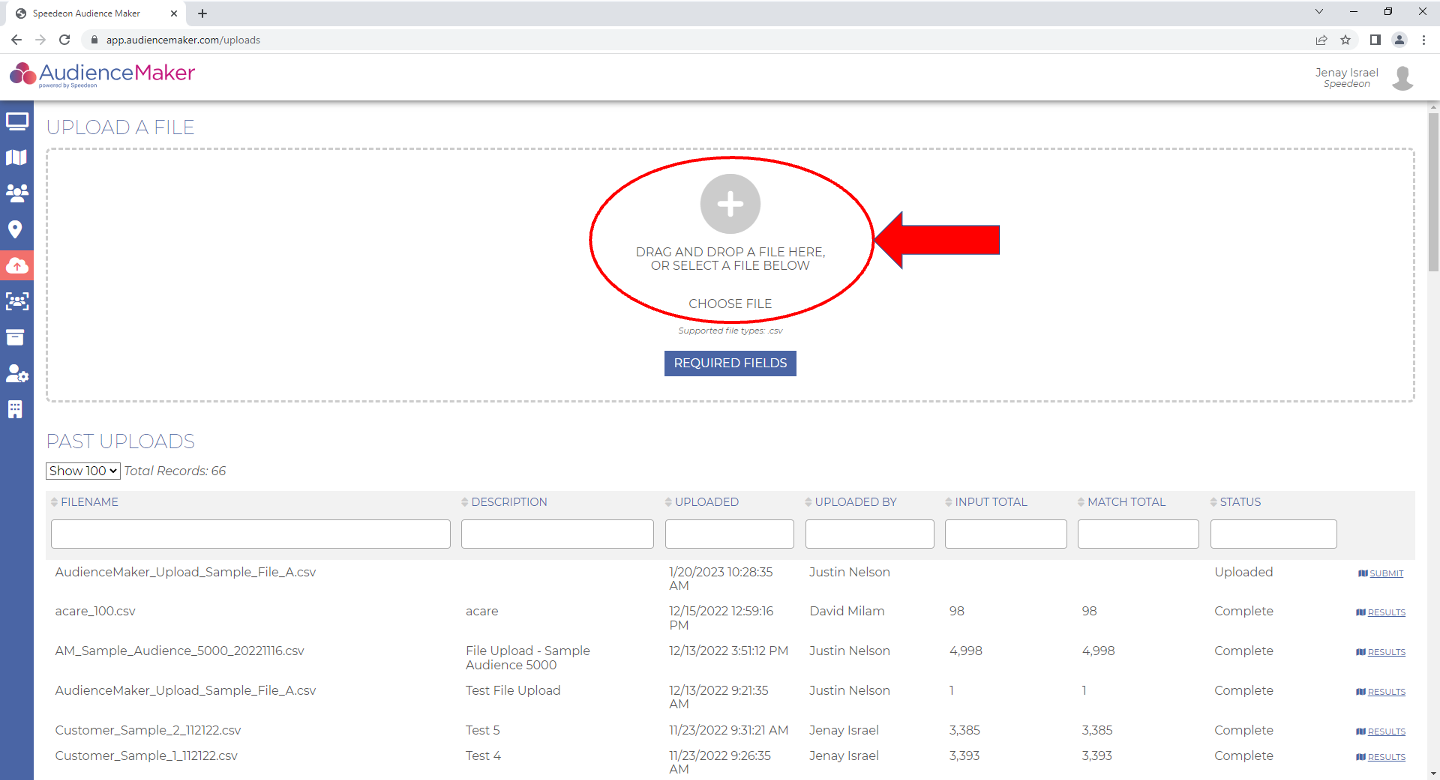
Once upload criteria has been verified, click the ‘UPLOADS’ button on the AudienceMaker home screen OR the ‘UPLOADS’ shortcut within the AudienceMaker toolbar to access the upload screen within AudienceMaker.
You may drag and drop your file into the ‘UPLOAD A FILE’ box on the upload screen OR choose a file to upload by clicking the “+” symbol within the dotted line area:
Step 3
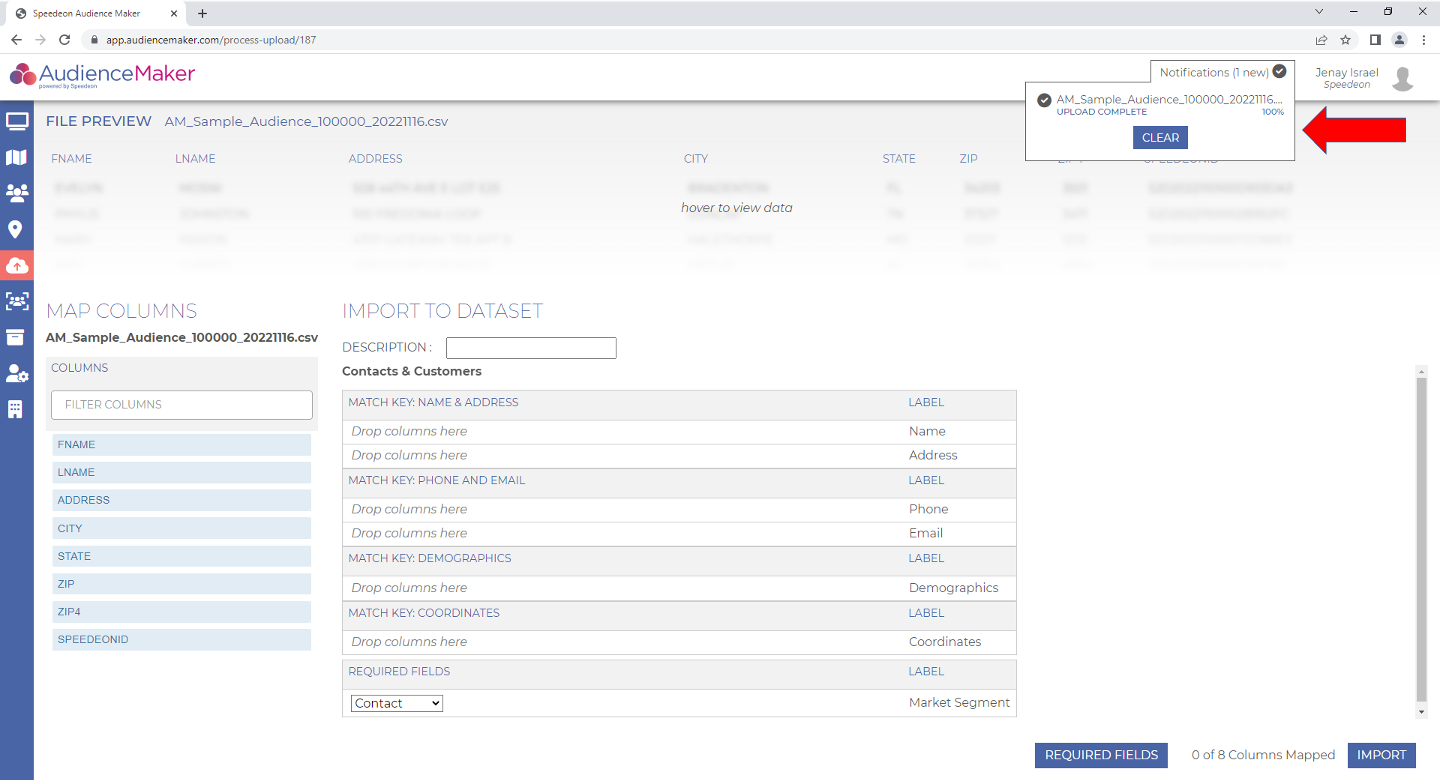
Once a file has been designated for upload, AudienceMaker will ingest the file and analyze it to ensure that it meets the necessary requirements. Note that depending on file size, it may take several minutes for the file to be ingested. Users will receive a notification once the upload has been complete:
Step 4
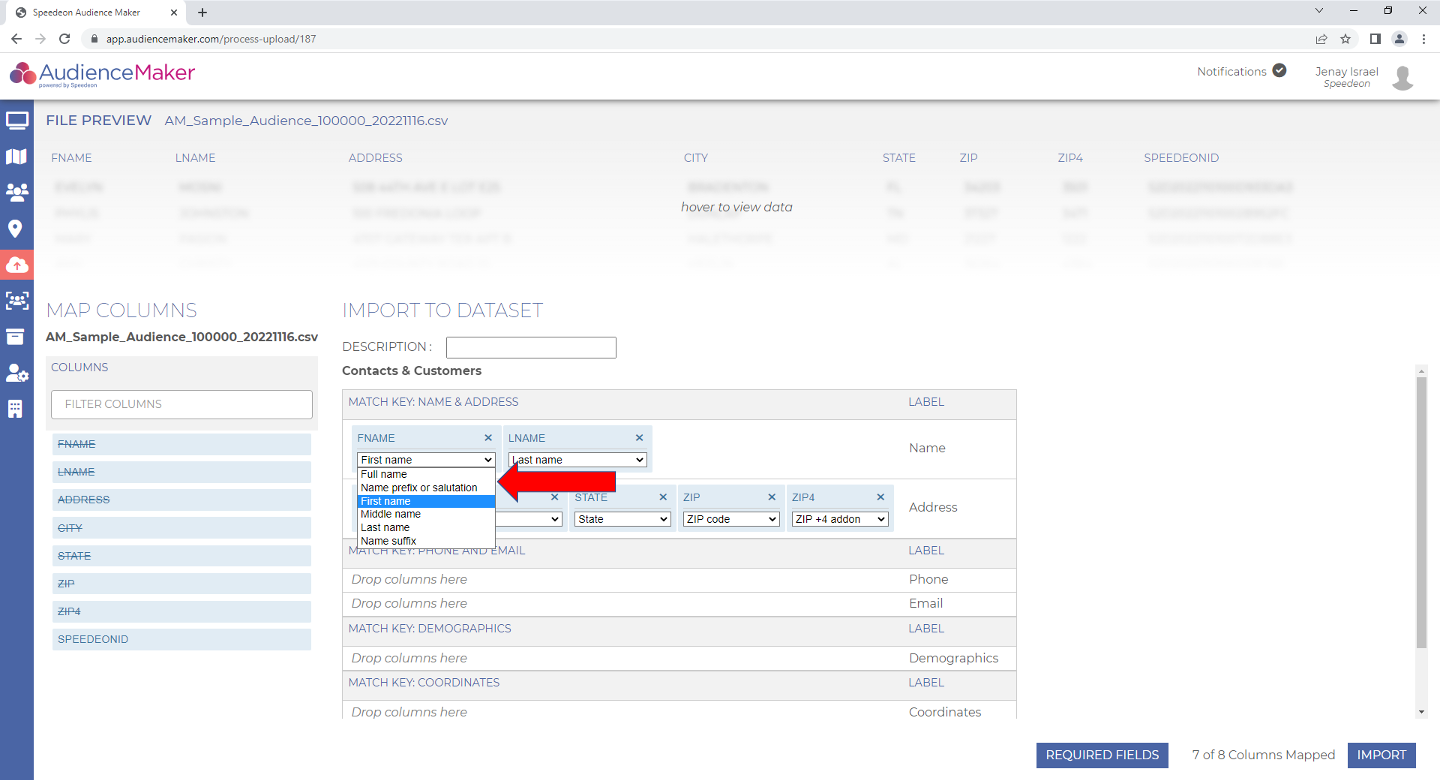
AudienceMaker will attempt to map fields to the corresponding contact details (name, address, etc.) however, some mapping may need to be completed by the User to finalize the file for enrichment. If this is required, drag and drop the column to the corresponding data type area and use the drop downs to configure the field for AudienceMaker:
Step 5
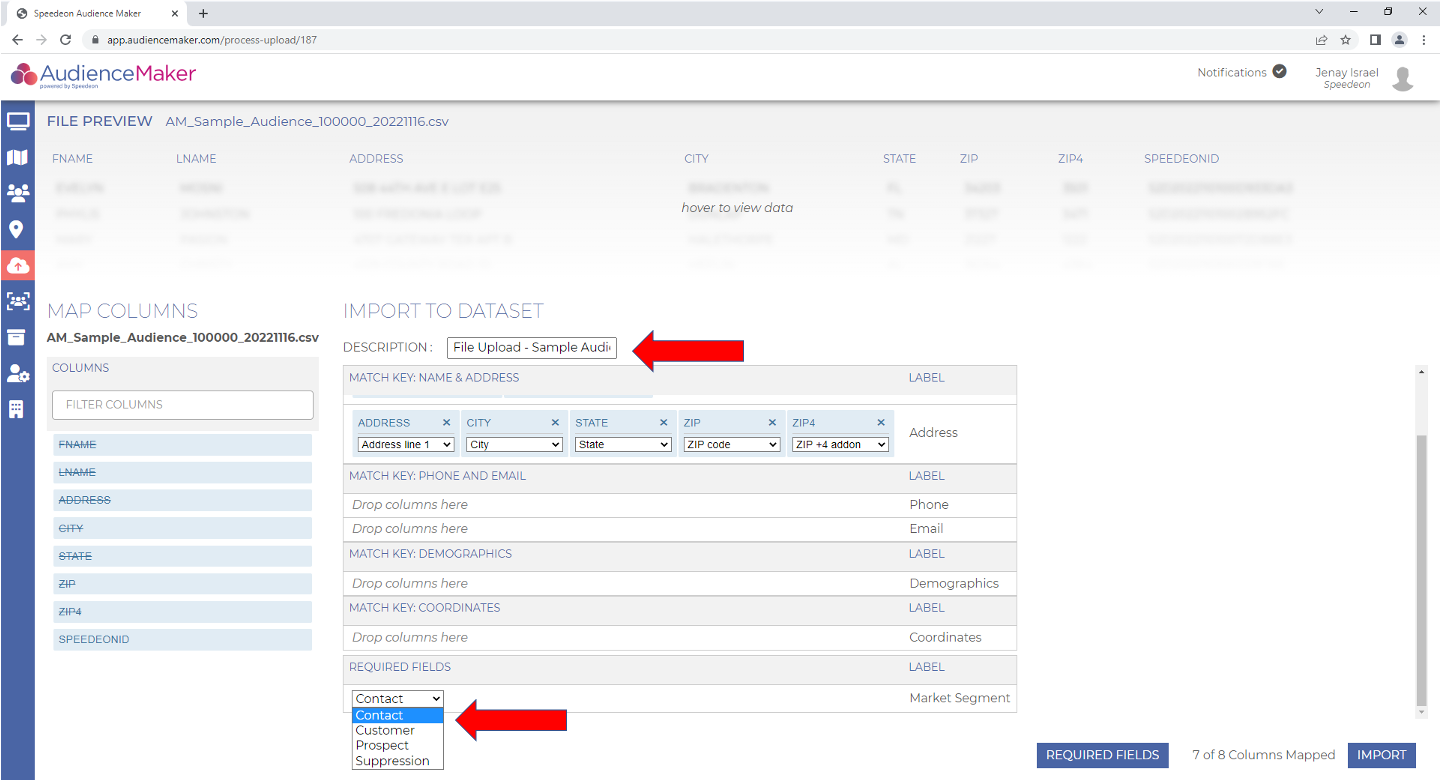
Once all field mapping has been made and verified, enter a description for the upload and designate the audience group type (Contact, Customer, Prospect, or Suppression) and click the blue ‘IMPORT’ button in the lower right-hand corner of the screen:
Step 6
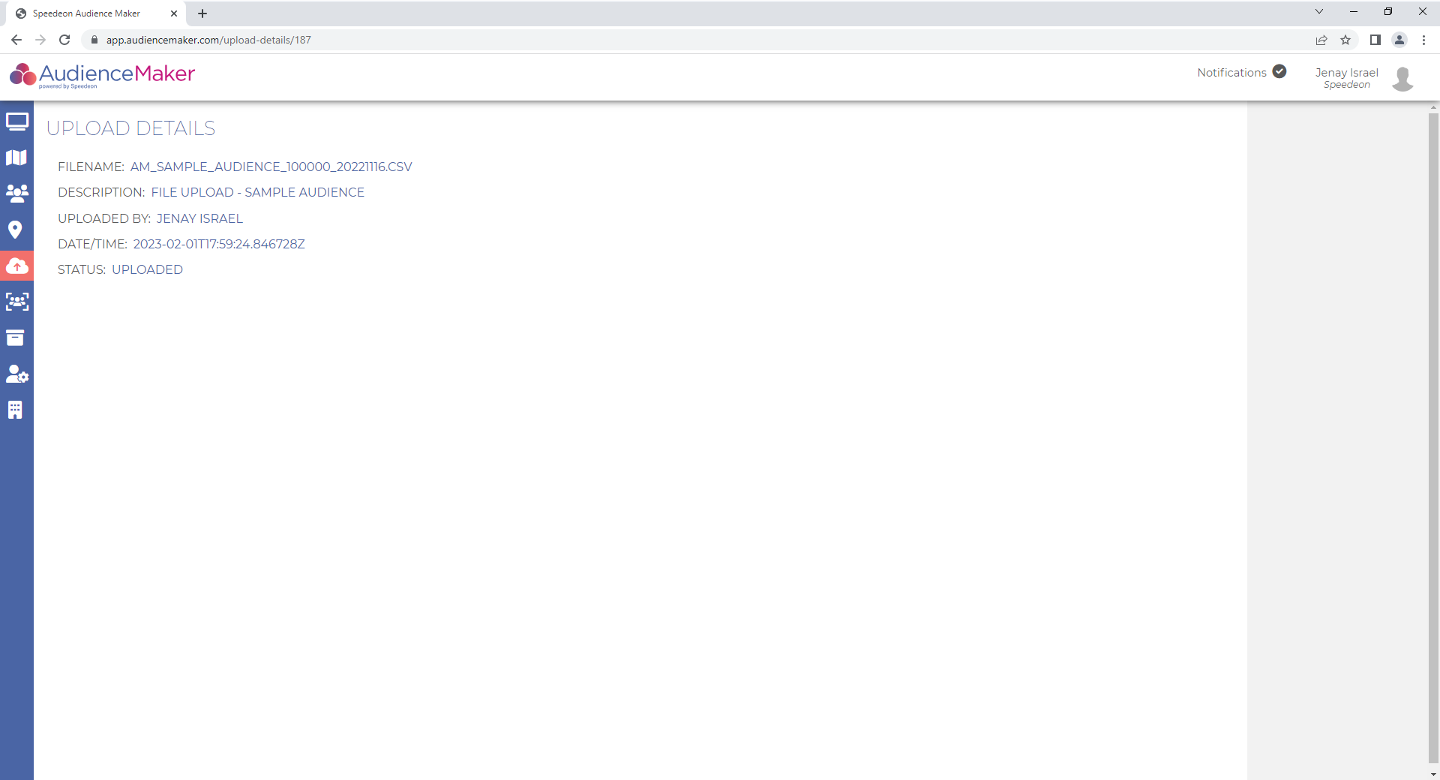
Upon import, an “Upload Details” screen will appear which includes key statistics about the upload process:
Step 7
Within a few minutes, your fully enriched file should be available for audience development, analysis or modeling in the designated data group folder under ‘My Data’: