
This tutorial walks through the process of extracting data containing personally identifiable information (PII) from AudienceMaker for the purpose of marketing activation or outside analysis.
Prior to beginning this tutorial, users are advised to be vigilant when extracting files containing personally identifiable information from the AudienceMaker platform as file downloads are subject to the terms and conditions outlined in the Speedeon Services Order Form and may also be governed by your own organization’s information security policies.
This tutorial also assumes that an audience has previously been developed for the purpose of in-market activation or analysis.
Step 1
Users may begin the process of extracting data from the AudienceMaker platform by navigating to the ‘AUDIENCES’ button on the home screen OR the ‘AUDIENCES’ shortcut within the AudienceMaker toolbar to access saved audiences within AudienceMaker. Once you’ve located your audience, select ‘EDIT’ under the corresponding ‘ACTIONS’ drop-down menu. This will open your audience in the ‘EXPLORER’ portion of the platform:
TIP – Verify the audience filtering criteria prior to extracting to ensure that all elements are still relevant for the data extract. This is especially important when ensuring that ALL suppressions are applied
Step 2
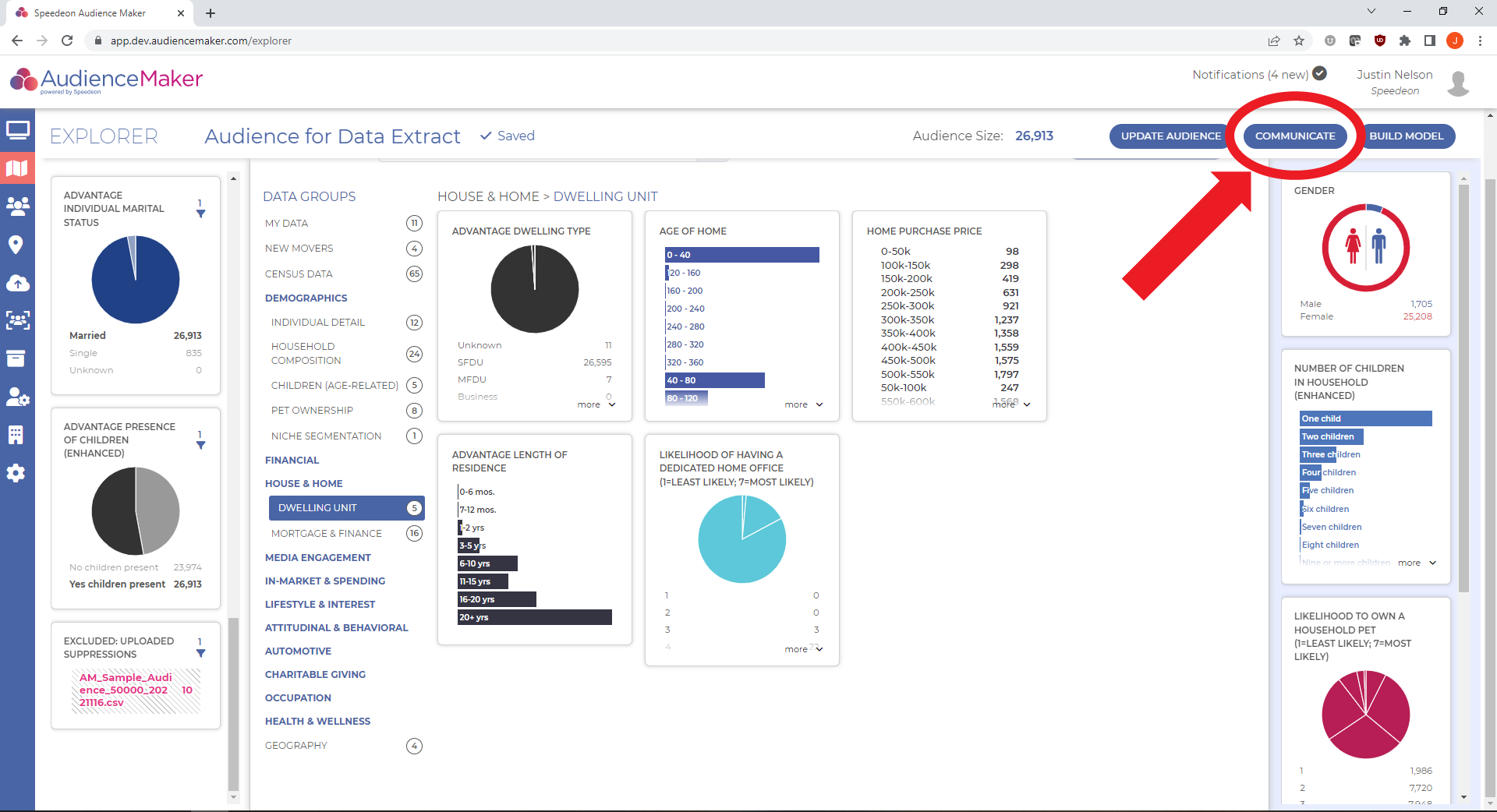
Once your audience has been loaded into EXPLORER, click the blue ‘COMMUNICATE’ button in the upper right corner of the screen to place an order and extract data:
Step 3
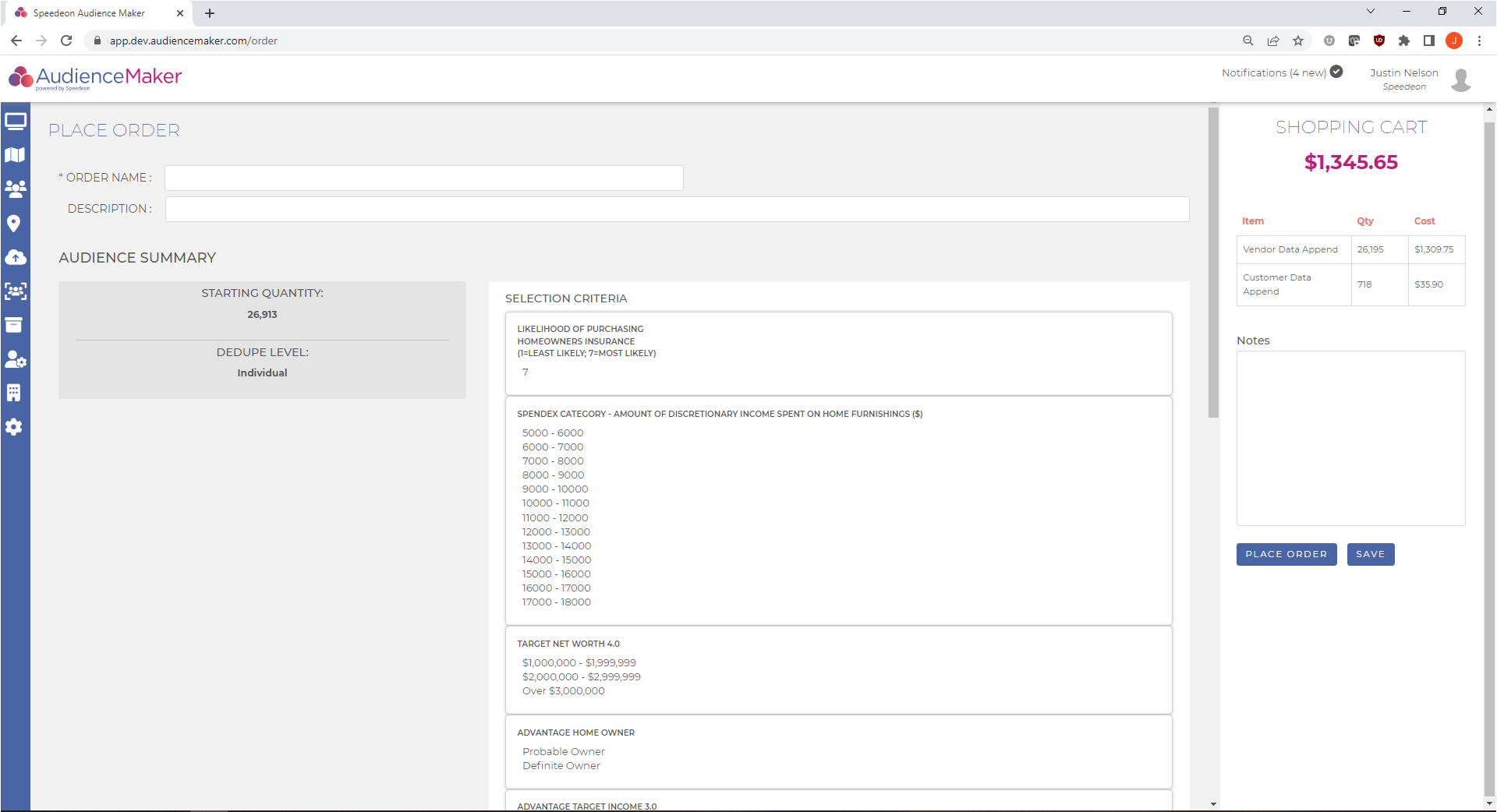
Note that you must finalize the form to extract data from AudienceMaker by completing the following:
ORDER NAME – This is the proper name you’d like your audience to be named. A general description of your audience and timeframe is recommended for future reference, “AFFLUENT HOMEOWNERS – Q1 2023”
DESCRIPTION – This is an area to capture expanded detail for the order and document any key elements of the audience for reference and retention
Order Options must also be entered to complete the order:
DESIRED QUANTITY – This field allows the ability to reduce the quantity of records within the order by randomly reducing volume. The default value for this field is the total record count of the audience.
CHANNEL OPTION – The channel option selected impacts fields within the output layout of the data extract based upon use case. Options include output for email deployment, direct mail, digital onboarding as well as general analytics.
ADDITIONAL DATA FIELDS – This option corresponds to which fields you would like to append to the output layout for the purpose of segmentation, analysis, and campaign measurement if the audience is being extracted for marketing activation. Scroll through the list of attributes to append or use the search bar to find specific attributes to append that are of interest.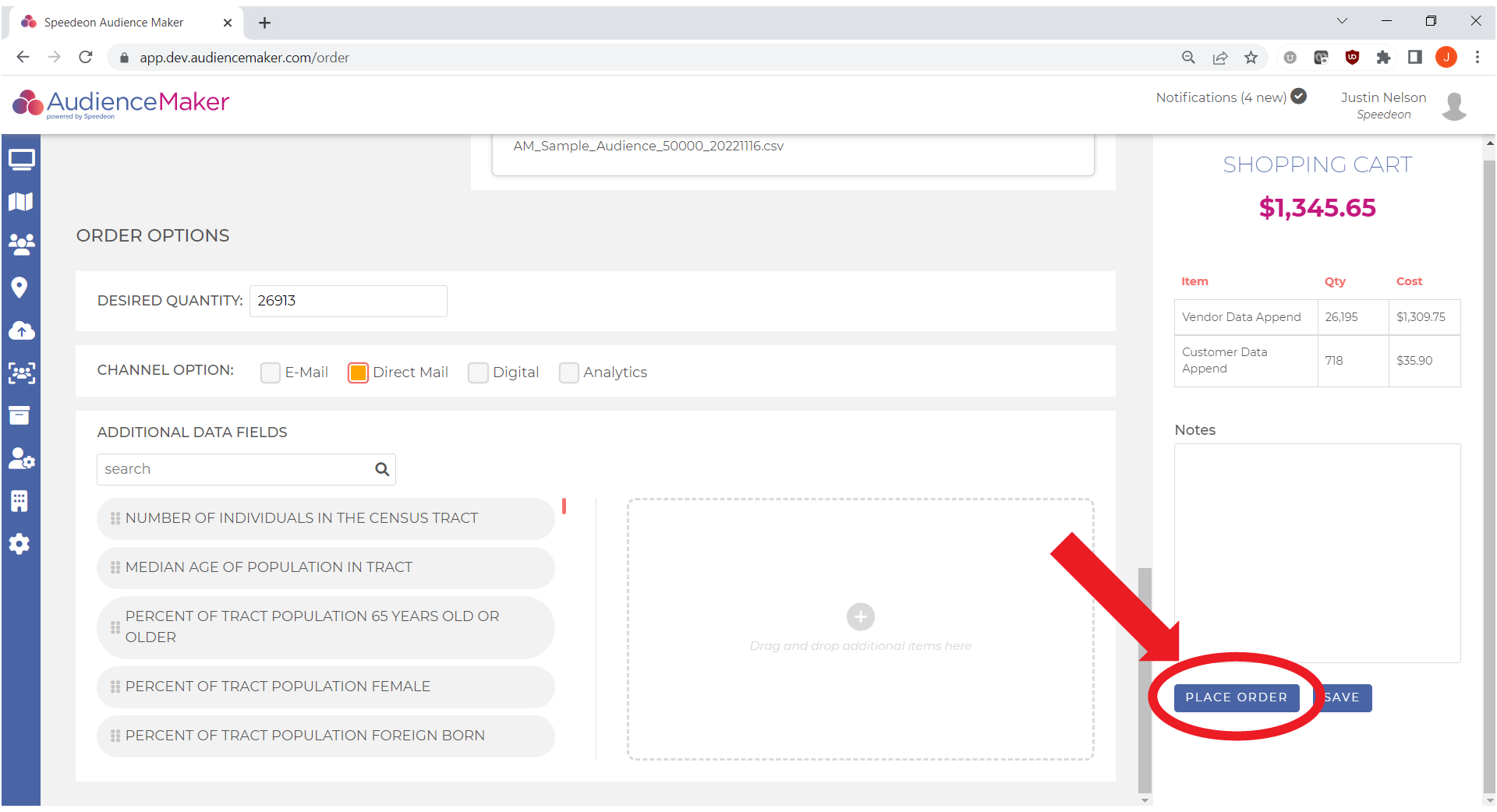
Step 4
Once all options have been completed, review the shopping cart to assess data costs and add any additional notes to the order.
When the order form has been completed, you may save the order for future use by clicking the blue ‘SAVE’ button in the lower righthand corner of the screen or place an order to extract the data by clicking the blue ‘PLACE ORDER’ button.
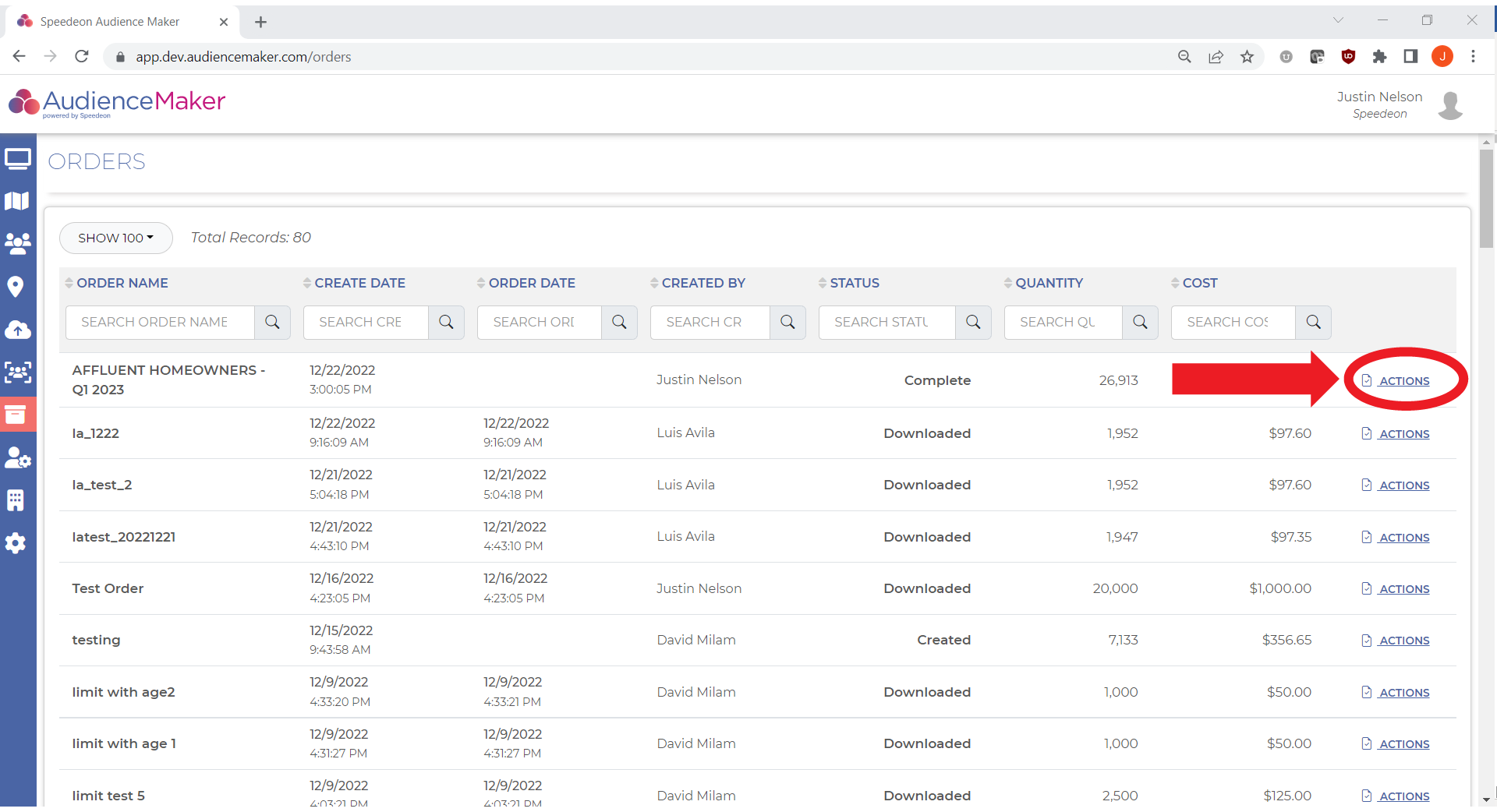
When an order is placed, the AudienceMaker platform will finalize the extract file for output. In most cases, processing will take a few minutes but will be dependent upon the size (record count) of the output file.
When processing has been completed for the order, the status of the order will change to ‘Complete’ in the ‘ORDER’ menu:
Step 5
To download the order, click ‘Actions’ next to the order intended for download and then click the ‘Edit’ option where you will be navigated to a screen that includes a download link as well as key details corresponding to the order: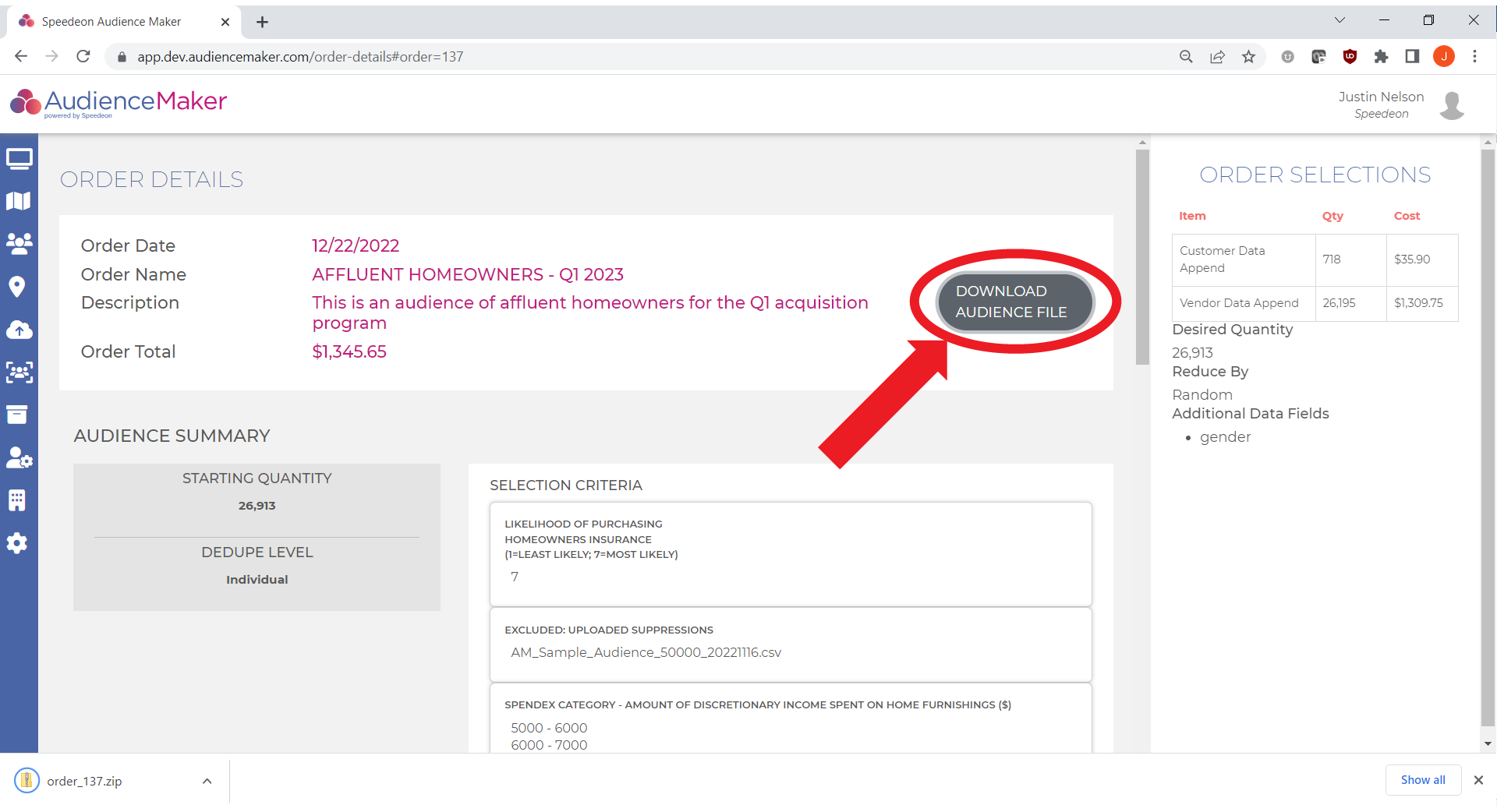
Click the ‘DOWNLOAD AUDIENCE FILE’ button and your data extract download will commence.
PII REMINDER. Users are advised to be vigilant when extracting files containing personally identifiable information from the AudienceMaker platform as file downloads are subject to the terms and conditions outlined in the Speedeon Services Order Form and may also be governed by your own organization’s information security policies
The file may be retrieved from the downloaded directory and utilized for the intended activation / analysis use case.
This completes the Data Extract tutorial.